Capture One v22 - Import

TLDR; Is there a limit to the number of photos C1 can import at a time?
Relatively new to C1.. When I attempt to import photos to catalog (i.e. Add to Catalog) I will select my Import From as desired and then choose Include Subfolders checkbox. C1 will then show previews off all the images and I've noticed a total image count in the upper middle of the screen (shown below).

What's strange is that as C1 imports, and shows previews, this number will actually count down... I have noticed C1 doesn't get all of the images in my photos path (C:\Users\User_Name_Here\Pictures\Master Catalog). I should have around 15k photos nested in sub-directories under the "Master Catalog" directory. As you can see in the screenshot above, by the time I snapped the screenshot it had counted down to 10,816.
Has anyone else noticed this? I've been over the YouTube videos several times and poured through the documentation on limitations to importation. I can't figure out why it's missing photos. My license is a Professional license so it should be able to grab all of my photos as verified by C1 FAQ section on supported filetype extensions.
Is there a limit on the number of photos to import in one shot? Do I need to break the importation down to a smaller number of photos and import incrementally?
Thank you, in advance, to those of you who have made this far. I've sent a request off to support but that was 8 days ago...
Edit: This has now been 25 days since I created a support request.
-
I don't think there is a hard limit, I see users here with 70k or more, there is maybe a rather soft limit, number or image you want to have in the catalog before C1 becomes to slow for you, depending on your hardware and performance expectations.
Your idea with the file type was a good on, also greyscale (not supported) and image minimum dimensions (600px or so), maybe you can identify one image which was not being imported and draw conclusions from there.
Can you open menu Windows > Activities while C1 is counting down to see more information?
0 -
Thanks for the reply and tips, @BeO. I tried watching the Activities window when performing the same import procedures I listed above. It remained blank. I did this a couple times to watch and it stayed empty. To be clear, I am NOT actually importing the photos as of yet. Simply populating the import fields with the appropriate information but not selecting "Import" in the lower right corner of that window.
It appears to be grabbing all of the .jpg images and none of my RAW (.NEF) files. However, when I try to import SPECIFIC images that are RAW (.NEF) from a specific directory it has no issue displaying them. My initial thought here was that I purchased the wrong license but I've successfully imported a specific RAW file so that doesn't appear to be the case. I haven't tried going through each year and breaking up the import process into multiple imports. I suppose I could do that. Be a bit of a PITA but it's not reasonable. I was just trying to ensure I'm doing things correctly. Perhaps there was a known bug with Capture One v22? Limitation of some sort? Etc.
0 -
Do you have set a filter in the import dialog?
0 -
I don't believe so... I found this and it appears nothing is selected from a filtering standpoint.
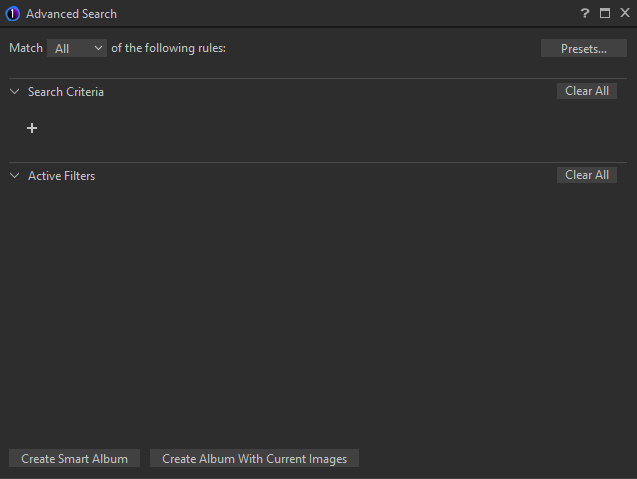
What is, however, interesting is that when I do set a filter for my raw (.NEF) files it doesn't appear to see them but they are most certainly in that same file path and directory as the .JPGs. Strange..
When I change the Import path from my "Master Catalog", that everything else is nested under, to something like a singular year (2019 for example) it will properly display the contents of that folder. What's more is that it will show all .JPGs, .NEF, .DNG, .MP4, etc.
0 -
Import from C:\Users\User_Name_Here\Pictures\Master Catalog, including subfolders, does not show you the NEF files, but importing from C:\Users\User_Name_Here\Pictures\Master Catalog\2019 does? Does it show you also NEF files in sub folders of \2019?
0 -
Yes. What you're saying is all correct. When I point the Import From at the main "master catalog" path it only finds .jpgs (Include Subfolders IS checked). When I point it at the 2019 folder nested INSIDE of the master catalog it finds everything; NEF included. And these NEF files are also located in sub folders of 2019.
I thought that, perhaps, Capture One only allowed a certain number of nested directories deep so I performed a test. I created a new folder and dumped 15 folders nested down in and at the end of the line I placed a .jpg, .nef, .mov, ..mp4 & .png. I then placed this newly created folder in the same "Pictures" location as my "master catalog".
C:\Users\User_Name_Here\Pictures\Test_Master\1\2\3\4\5\6\7\8\9\10\11\12\13\14\15 (Files stored in directory #15).
When I select to Import From and point to this "Test_Master" while including sub-folders, the image previewer finds all of those images. I've uninstalled and reinstalled the software 3 times now because I figured it was something I was doing incorrectly. After never hearing from Capture One directly, from my inquiry, I came here for a sanity-check to make sure I'm not doing something wrong. I'm a bit puzzled.
Thank you for your willingness to keep replying BeO. Truly grateful from a Capture One noobie in Utah USA.
0 -

Observation: the path you have contains a space in "Master Catalog".
When the path is not properly quoted in some code in CO22 the space can be interpreted as the end of the line. Result: C:\Users\User_Name_Here\Pictures\Master Catalog is now C:\Users\User_Name_Here\Pictures\Master
Of course this path does not exist and nothing will be found there. Strange thing is that it does work for 1 filetype, but not another. Perhaps JPEG and NEF files are searched for by different pieces of code, only the NEF handling code having the issue.Your experience with the path ending in \2019 and your last nesting test, where you also did not see the same issue, seems to support the idea the space in the last part of the path triggers the issue.
I guess renaming your root folder to something without a space in it would break a lot of already made references/imports to files underneath? Otherwise, worth a try.
0 -
Observation: the path you have contains a space in "Master Catalog".
Good catch, Propheticus, maybe it's the root cause.
If Mathias is renaming his root folder using the C1 library tool instead of the Windows Explorer then the references to the images should be updated automatically in C1.
0 -

If none of the NEF files are located in the first subfolder under "Master" the chances are that it is not reading the next folder down the tree. (I.E. the Year folder has no recognised images.)
When you Select the Year folder the process looks at the folder below it and finds some files to be imported.
That's a theory. Does it fit anything you have discovered?
0 -
Thank you ALL for replying to help figure this out. I really do appreciate it.
I tried what you're saying with regards to the space in catalog name. Firstly, I removed the catalog entirely so I'd be starting from scratch. I changed it from "Master Catalog" to "MasterCatalog" (i.e CamelCase). I then attempted to import the entire catalog, and structure nested beneath, and it is behaving the same way.
I've gotten to the point now where perhaps I just import all of these photos in a more manual way rather than C1 completing that for me. The behavior of C1 with regards to my photos leads me to believe I can do this but as you're aware, importing thousands of photos in this manner will take some time... I haven't heard back from C1 regarding my open support case so I'm thinking I'll just roll on and deal with my issue. It's not great and will be a major PITA but that's where I'm at.
Thanks, again, to all of you. All the best.
0 -
Installed v22 and indeed the importer was not always showing images as it should, but a restart helped in my case. Some kind of bug I think.
Try the following instead. Put any image in your tomost folder "MasterCatalog" and import this image. This should show the topmost folder in the library tool. Then right-click this folder and select "Synchronize",
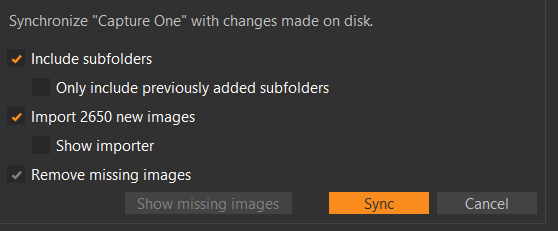
do not check "show importer" but check "include subfolders". This worked for me in the case when the importer didn't show any images.
Maybe if you don't want to "import" 70k images at once, do this with a sub folder in your folder hierachy instead of your topmost folder.
All the best for you too.
0 -
Mathias, I can reproduce the counting down and have an explanation/assumption for it.
When I try to import from a folder with sub folders I see the number 4500 but no image at all. Nothing.
When I try this a little bit later again, I see the number 4500 again, then C1 import dialog starts showing preview images and the number counts down, to 760 in my case.
So, first assumption is that it takes a while to parse the folder structure in the first place and I have not been patient enough to wait until this parsing is finished (or, only the second try will actually show images).
Second, I count 4500 items in WIndows Explorer searching for "*", including folders and non-image files. But I count only 760 images (raw files, tiff, dng, jpg, png etc.) in Explorer.
Which means that in your case, C1 recognized only 10,816 files with a legit file format and content (that is the raw formats supported by your C1 version (e.g. .arw files only if you only have the Sony brand version, plus all jpgs, tiffs, etc, excluding grey scale images,
as explained here: https://support.captureone.com/hc/en-us/articles/360002501237-What-file-formats-are-suitable-for-import-0 -
small correction: I just saw 10,816 is only a snapshot during the cound down process. If you wait until count down is finished, this is the number of files C1 recognized as being legit for import, so only a fraction of your 75k images, if 75k was the number before counting down.
0 -
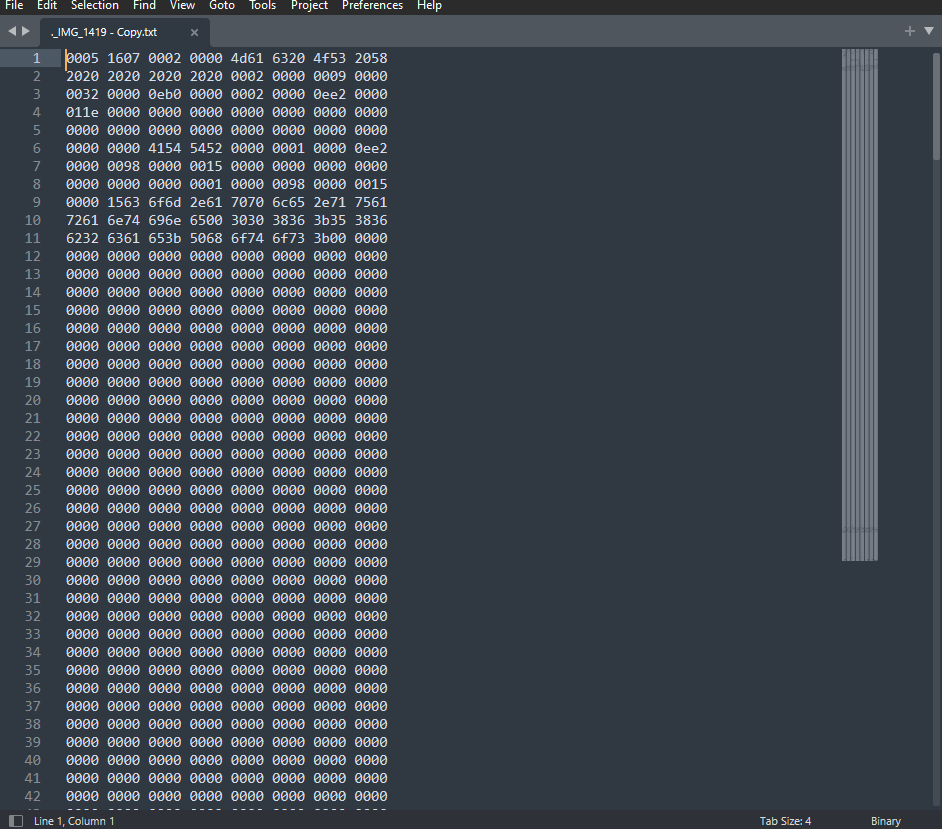
This is interesting! It appears you and I have, coincidentally, stumbled upon the same thing. After trying your previous suggestion from yesterday I got to tinkering around with things a little bit. I had File Explorer display Hidden Files and started noticing (in SOME of the locations) files that preceded their file name with a "._" (dot followed with and underscore). I have never seen this before and a quick Google search revealed that this is actually an indexing file brought about by OSX on an Apple machine. It has the same name and the jpg but precedes it all with a "._". For example, I have an actual image of IMG_1419.JPG and another hidden "image" of ._IMG_1419.JPG. Only the latter is set to hidden. Moreover, that ._ file does not actually contain an image. I opened it in a text editor and learned it's a binary file (pictured below).
I got to looking around several other directories in my "MasterCatalog" and learned these are ALL OVER. I have had an iMac for several years so this is entirely expected. It appears that when I ported my images over to my new WIN10 PC build it brought these with it (again, expected).
Being of an engineering mindset I decided to do a little test. I firstly created a new directory on my desktop titled "TestCatalog" and created a nested folder underneath that titled "Level_1". Here is where I placed the 2 files I referenced above. One was the ._ while the other was an actual image. I fired up C1 and started the import process by pointing to that newly created directory and checking the Include Subfolders checkbox. What I noticed was when I did this, C1 initially showed "2 images" in the upper middle of the screen like we've been talking about. It then (500ms or so) counted down to 0 and does not have any image being previewed. I then tried another test by deleting that OSX indexing file (._) and it did the same thing but this time only showing 1 image; Still NO preview of the actual image.
Takeaway: I believe my problem is that C1 was "seeing" these OSX indexing files and understanding that they're not a real thing and excluding them. This led me to believe that C1 was missing images upon import. I've since deleted all of those OSX indexing files (no longer needed on PC) and my image count decreased by roughly 60%! So in all, this behavior was somewhat misleading but ultimately not detrimental like I had originally thought.
Side note: Still strange is that when I am trying to import my MasterCatalog again, C1 gets stuck on the final 400ish images and never competes its import. The activity window also displays this and claims about "1 second remaining" but never actually finishes (even after hours untouched). I've now gotten to the point where I've thrown my hands in the air, cancelled that import operation, relaunched C1 and am now moving on with the assumption I've got all images into the .cocatalogdb like I want.
Thanks again to all of you (especially BeO) for taking the time to answer to some dude out there in world via the internet about something as trivial as photo software. All the best to you and those you care about. May 2022 treat you well, my friend.
0 -
Thanks, same to you.
BeO0

投稿コメントは受け付けていません。
コメント
15件のコメント