How to deal with duplicate file in the folders collection

In my Folders Collection, I have 9695 photos in Macintosh HD and in User Files I have the same 9695 as well I have 9695 Photos in (my name) folder can I eliminate some of these folders? Are these duplicate files that consume added space? Is this normal? Thanks, Victor
-
Folders Collection?
Are you using a catalog or session?
Anyway, in C1 you see images that reside on your disk, with Finder you see images on your disk, only the location / path can tell you if it is the same image files. Don't delete them if you are not sure that these locations differ.
0 -
Using Catalog. Thanks for your reply, I will check, location and path, to see if they all display the same image file. If they are all the same image and path can I move the duplicates to trash?
0 -
I'm afraid I don't really understand " in Macintosh HD and in User Files", and before I make a recommendation which is wrong...
maybe if you paste screenshots to illustrate your situation, or a Mac user replies here (I am not).
0 -
Screen shot attached, Victor
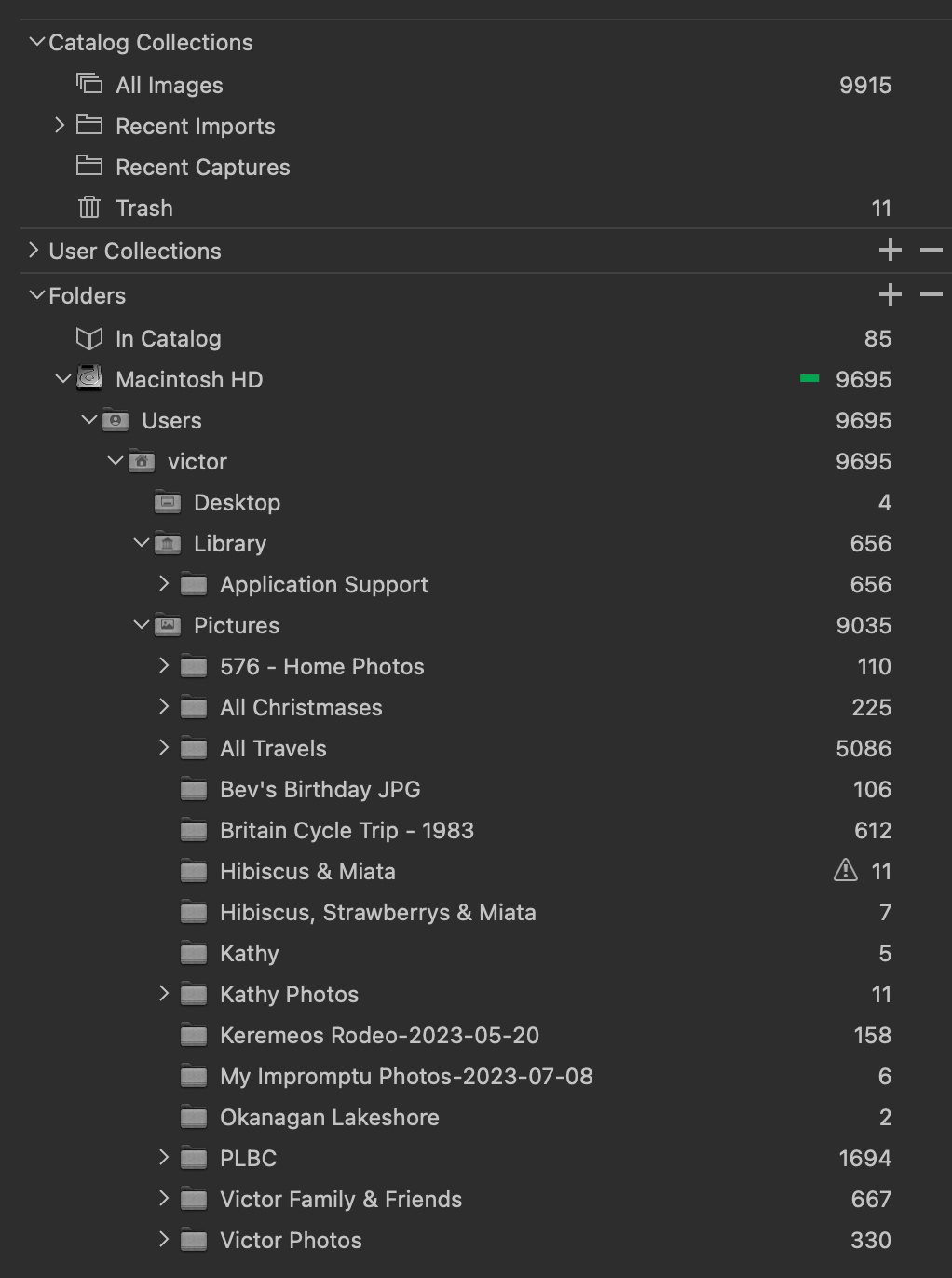 0
0 -
No, these are not duplicates. Each folder shows the images which are stored in that folder, plus all images of the sub folders. You can change this by right-clicking on any folder an select "Hide images in subfolders"
Also note that you have 11 offline image in the folder Hibiscus & Miata. Right-click in this specific folder and select locate if you know where the image folder is, or do this on each of the 11 individual image thumbnails in the folder.
0 -
Once images are added to the catalog you should not move them away using Finder, otherwise images go offline because C1 does not know where you moved them to. Same for delete. Do all this in the library tool or browser to library via drag&drop.
0 -
WOW, this is a great and comprehensive reply. Let me see if I understand correctly, if I were to right-click on the "Victor" subfolder and select "Hide images" the images won't be lost, just hidden. Victor
0 -
Yes, just hidden in the parent folders, not hidden in the folders the images are actually stored in.
"Hide images in subfolders" should be renamed to "Hide images from subfolders" and "Show images from sub folders", because in the sub folders they actually are stored in they will be shown in any case.
If you click on Victor you will see 9695 images, because you have 4 images on the desktop, 656 in the folder Library (or in its sub folders), and 9035 in Pictures or its sub folders.The folder Victor will show you all images it has on its own and those images which are stored somewhere beneath Victor in any of its sub folders.
This has the advantage that you can click on Victor and then use the search or filter functions in C1 on all 9695 images, if you don't know where the images are located, or if you want to show all images from Kathy knowing you have at least 2 folders with images from her but want to see them all at once.
EDIT: Just try it, you will understand then easily, nothing will get lost, you can return tby right-clicking and selecting "Show images in subfolders" which will appear in the context menu then.
0 -
Thanks again for your guidance and suggestions, I have done as you suggested and I am pleased with the results, I will send you a screenshot showing what I have achieved later.
0 -
Screenshot, the "New look" including some changes, some work to do location original images.
Your help has helped me to resolve a situation that has "bugged" me for a long time, much appreciated, Vic
 0
0 -
You are welcome. You might also want to look into this article
https://support.captureone.com/hc/en-us/articles/360002400597-Offline-images-explained
because I see two offline folders 'David BMX' and ' Hibiscus & Miata'.
Note, individual offline images can only be detected by you by looking at the thumbnails in the browser.
Don't move,rename or delete images or folders in Finder to avoid this issue, do this always in the C1 catalog.
(If you have more than one catalog referencing the same images then it becomes more complicated...)0 -
Regarding offline images, there is a workaround how to find them. It involves doing something which isn't possible with offline images. Here, I use batch renaming:
- Make a backup of your image files and the catalog before you do the below, just in case.
- Goto collection "All images", remove any filter.
- Select all images
- Goto menu Image>batch rename
- Use token 'Image name' and add a suffix e.g. -ONLINE

- Hit Ok, you'll get a warning message if not all images can be renamed (i.e. those files which cannot be found, the offline images)
- In the collection "All images" filter for all images which don't contain ONLINE

- Then you have filtered for the images which are offline.
- Then you decide what to do for each image:
Delete them from the catalog if the files don't exist anymore because you deleted them in Finder, or 'locate' them individially as described in the article. - Last but not least, batch rename again to get your original files names, remove the -ONLINE suffix from all images

- Verify if this was successful and nothing odd happened
0 -
Last point: Consider upvoting this request
0 -
BeO, I hope that one day I will be able to help someone as you have helped me, Thnks again, Victor
0

Post ist für Kommentare geschlossen.
Kommentare
14 Kommentare