Sessions File Management in C1 versus File Browser

I‘m struggling to get my head around some aspects of using Sessions. Until now I’ve been using Catalogues on an ad hoc basis but I’ve now decided that Sessions is better for my requirements. I am finding it difficult to understand the relationship between the file structure shown in my file browser and the mirror image file structure in Sessions.
As an example, I want to remove an unwanted sidecar folder (I believe it’s called that) from a parent folder but when I attempt to do this in the file browser I get a message saying the action can’t be completed because it’s open in C1. If I try to remove the folder from within C1 I get the same message. If I close CI I’m able to delete the folder from my browser but when I then attempt to open C1 again all I get is a ‘Recents’ window and the only way I can move on from this is to create a new new Session. Having done this the sub-folder is still there but now has the name of the newly created Session, so I’m going around in circles. I thing the editing facilities in C1 are marvellous but I’m easily confused by some of the functional aspects. Any help much appreciated. J.
-

I don't use sessions so much, but my understanding of it is that the images are stored in a Windows file structure and that structure can be viewed within the Capture One Capture Folder. Edits, previews, etc are stored in side car files rather than a catalogue. From the videos I have watched on the topic I believe that dragging files in windows explorer is not the thing to do, what you can do is use Capture One to view in library, which will show you where your files are in the windows folder structure (viewing the file structure within Capture One). You can drag images around in Capture One and all the associated side car files will get moved along with it. Then you can create session favourites, and session albums as required.
This is quite a nice video on Sessions. There are other videos on sessions in the Capture One YouTube channel
https://www.youtube.com/watch?v=rkqbc_4S2GU
As I say I am not a Sessions expert as I have only played with them to see how suitable they would be for me, so others may have more valid opinions on how they work in practice. I would suggest that you watch some YouTube videos on the topic.
0 -
Many thanks Mark. I'll look at that video. I take your point about working with files within Capture One 20 rather than in my file browser. As I've mentioned, if I try to delete a folder (containing a sidecar) from within Capture One 20 it won't let me. Nor can I drag it to the Trash Folder.
It's perhaps worthwhile explaining briefly how I currently use Capture One 20. I am a very amateur photographer. I own a Sony RX100 VI and plan to purchase a Sony RX10 within the next few months. My day-to-day photography involves images taken whilst out with walking groups a couple of times a week. Photos will range from people, through landscapes, to animals and flowers and on each occasion will be somewhere between about 5 and 40 in number. Once I have tweaked them in Capture One 20, selected the ones I want to keep, and exported them as JPEGs I am not usually interested in retaining the original RAW files or RAW file data unless, rarely, I have specific images which I consider to be special.
A couple of times a year I go on holiday (aside from the current Covid situation) and will take several thousand photos. These images are ones for which I will wish to keep the original RAW files and data together with the exported JPEGs.
I have a photographic folder structure in my Windows 10 file browser which is set up as I want and meets my requirements. Fundamentally, I don't really even need to create names for Sessions. All I want to be able to do is to import images into Capture One 20, processed them, export them, and then I will allocate them to a relevant folder in my file browser.
So, for the time being anyway, I don't really need all of the many excellent and no doubt useful options in Sessions other than using it as a method of importing images, processing them, and exporting them. Maybe, later on, I will want to get more to grips with some of these options. If this information allows anyone to advise on how I may simplistically use Sessions I will be very grateful for comments. J.
0 -

Jeremy,
It's easy to try and overthink sessions and decide they are ar more complicated than they really are.
From watching a recording of Paul Rieffer's live edit broadcast yesterday it seems that he and David Grover will be runing a webinar session to compare the approaches to using Catalogue and sessions at some point in the next week, Data and time to be confirmed. That should be useful.
If you are setting up a new session for a new shoot - studio or otherwise - you could simply use the default model and file structure offered when you create a session.
Coming form another application that had no Catalogue feature and basically just edit on top of the existing System file structure I spent much of my first year using C1 (in parallel with the other application) not appreciating the full simplicity of the Session default structure. One day I sat down and went through it getting the logic straight in my head and realised I was making things much more difficult than they needed to be for my needs. Your needs sound similar to mine, Some historical stuff but flexibility for the new stuff (once one realises how restricting basic system folder structures can be.)
Basically there are three starting points for typical Sessions.
A structured studio shoot where the images are captured directly into a session for convenience.
A shoot outside the studio concept where one downloads the images from the camera's memory or direct from the cards and "imports" them to a session, with or without some basic adjustments on imports and with or without the use of token based naming and folder creation as part of the import. Keeping the images folders within the session data structure makes the entire session easy to copy completely for backup and moving fto other machines.
Thirdly simply have an empty session with nothing in the folders but using the "Favorites" option to "Favorite" any folder in your accessible file system and have C1 look for images within in it.
You can, if you wish, use all three approaches in a single Session.
The Session database is the cosessiondb file - the equivalent of the cocatalogdb file for a catalog BUT without the edit information that the catalog holds.
Instead any folder identified in a session - in the session folder structure OR a Favorite" folder - will have a CaptureOne folder created for it and in that folder will be a Settings folder (one for each C1 version that has been used for those images is the rule in recent times) and a Cache folder.
The Settings folder contains all the files regular files required for editing the images in its parent folder. Edit instructions and layer masks for example. Keep that folder with the source images and your edits can travel to catalogs and other sessions if required. (More it possible but the concept is the same so I''lll keep it simple for now.)
The Cache folder contains the calculated Thumbnails and Preview files used by the browser and viewer. If you delete them C1 will still work but will need to recreate them next time you access that folder.
So, what else?
Well the Session offers some suggestions for default (physical) folders but you can introduce your own folders on the fly in either session or import mode and, of course, the Favourites just work with files wherever they are.
If you wish to create specific folder structures for your regular need to can do so and same them as personalised Session Templates to be called up when creating a new session. Any type of session.
One thing that may be a little confusing at first is that although the C! session creation process will create "physical" folders called Capture, Selects, Output and Trash use of these folders is entirely optional. Personally I find it useful to use the Capture folder (often with sub-folder created during import activity) and the Output folder. I rarely get around to the Selects folder. Trash is used occasionally.
However the "Session Folders" section of the Library tool, though it appears to point to those physical folders by default, actually uses links that can be change to point at any folder you wish to point to. Think of them as "virtual" folders. Now that is very powerful but also potentially confusing if one has made use of the re-direction facility but then forgotten one has done so. Something to be aware of.
Now, if you are already familiar with all of this on to other ways of making things work for you in a particular needs situation. That's much easier to do when you are comfortable with the general working described above.
If you are not familiar with all of that I heartily suggest you just set aside an hour or two to run through the basics to the point if practised familiarity before moving on to the "now I know the basic driving controls how do I make it work best for me" stage.
I found that once I took the time to gain a proper and full understanding of what it was designed to do and how it worked, that understanding opened up my own possibilities for controls and time saving without any significant change to the core process I followed with my previous favoured application. Yet it still allowed me to use both, side by side, for as long as that seemed appropriate.
So getting the basics in hand allows for developing the fancier needs later.
1 -
Fantastic information SFA. Thanks. I'll take time to absorb it and attempt to implement it. Your comment about overthinking sessions rings true for me. I had a feeling that I have been doing this but couldn't work out how to "get out of the loop" ! J.
0 -

You sound a bit like me. The way I use Capture One is as follows.
I import and organise files into a multi level File structure using an application we don’t mention to much here ;-).
I have single universal Capture One session.
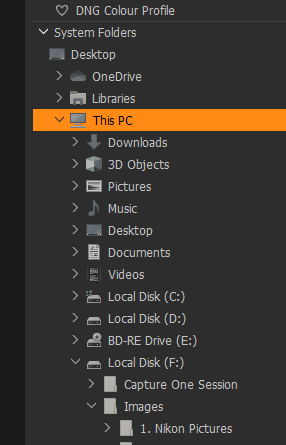
When I want to make use of Capture One’s special advantages I open this session and navigate to the image I want to work on in the System Folders pane of the Library tool and work on it. Capture One creates a sidecar folder in the pictures containing folder called CaptureOne which holds all the editing data for pictures in that folder.
I totally ignore session folders (except the trash folder), session albums, and session favourites.
This works for me and I have found it a very straightforward way of working.
Hope this helps.
Dave
0 -
Dave,
That was pretty much what I was doing originally as that was the way I had to work using my previous favourite system - which had no DAM capability at all.
I still do that when a dedicated session structure simply does not seem sensible - for example random test shots, samples downloaded for the internet for testing or problem files that I may be taking a look at for other people.
But for most of the images I shoot I will have either a dedicated session for the event/activity or a "running" session for somewhat random but often repeated activities that benefit from being collected into a single session. They may have a set of shots imported to the folder structure with naming and some default adjustments/iptc info loaded on on import of they may be dragged in randomly, with or without making the folder a "favourite" depending on how I think of it at the time and what I might be doing with it in the future.
Mix and match is also possible and, at the risk of creating some confusion, there is no restriction for a a folder to be part of only one session (or indeed one catalogue .... but that then starts to get a bit mind stretching.
0 -
All good stuff. Thank you. It's only too easy to put oneself into a spiral of confusion as my 78 year old brain doesn't get to grips with things quite like it used to :( No doubt I will have further questions in due course but I'm very pleased to understand that there may be light at the end of the tunnel :) J.
0 -
Jeremy,
I understand exactly what you observed.
0 -
Further to the very helpful comments I received after my initial post I've been reading / viewing information on using Capture One 20 Sessions. If anything, I am possibly a little bit more confused than I was before mainly, I think, because my required method of usage is so simple that most of the information I've been trying to absorb is going into a lot more detail than I need.
Here is a resumé of how I wish to work at the moment (things may change in the future):-
1) I transfer RAW images from my camera's memory card to a 'Holding' folder in my file browser (Windows 10). If I have images that I want to keep in separate batches I will move them into other numerically identified Holding folders. At this stage I will do some preliminary culling.
2) I now view these Holding folders in the C1 folder hierarchy where they also have a sidecar folder. I have set up a Session called ‘Temporary’ but I’m not using this Session Folder in terms of utilising the Capture, Selects, Output, Trash options or the Session Favourites. In the New Session dropbox I have selected the location of ‘Temporary’ as being in my standard Windows 10 browser ‘Pictures’ folder which I don’t use for storing images.
3) I work on the images and then use the Export facility to send them as JPEGs to another browser folder which, for now, I will call 'Completed'.
4) Once in the Completed folder I may do some further culling. I will then transfer the images I wish to keep to their eventual resting place in my Photographs folder structure in my file browser.
So far, this method seems to work well aside from my comment below. Do people on this forum think this is the simplest way for me to do things? Am I missing anything very obvious?
One thing I find puzzling is that when I export JPEGs to the Completed folder in my file browser they initially appear without a sidecar folder. A little later – I can’t decide if it’s the result of something I’ve done In C1 - the sidecar folder pops up in my file browser and I can’t delete it. I don't need it, particularly if I plan on keeping the original RAW files with their associated sidecar folder. Is there any way to export JPEGs without a sidecar folder?
My apologies for being wordy. I now would like try and put this thing to rest so I reckoned it would be best if I gave sufficient information for people to be able to advise. Thank you. J.
0 -
Jeremy,
Re. your last paragraph specifically ...
The output process does not assume that you would wish to include those new files in your C1 session (or catalogue come to that.) You probably really want to view them as other would see the results - via a web browser, a "gallery app" or maybe as a printed output.
On the basis that they are finished edits there is probably little or no need to open them in C1. Therefore the folders are not automatically added as "Favorites" to the session.
HOWEVER, if you DO go in and open the folder in the session to look at the contents then the sidecar folder and contents will be created because C1 assumes you want to edit anything it understands to be valid digital images in any folder you open.
If you also set the folder as a "Favorite" it will remember it for as long as you tell the session that it is a "Favorite".
The sidecar files in effect treat the output files and new original images to be edited. They are completely separate from the images that were used to create them.
The simple solution is to avoid opening a folder with output images in C1. If you do, for some reason, but do not need the sidecar files you can delete them. If you delete the subfolders/sidecar files but leave the Folder set as a "Favorite" C1 will simply re-create the sidecar stuff next time you open the session - so de-favourite as well if you accidentally set it as a favourite.
SO, after Output either don't use C1 for your final culling OR use it but then delete the sidecar file folders and certainly don't bother with taking the Sidecar files when you move the collection to your Photographs folder structure.
I'll give the first part of your last post some more consideration before responding.
0 -
Thanks SFA. That's cleared up the matter of the sidecar folders being attached to the JPEGs exported to my file browser. It explains why initially I wasn't seeing the sidecar folders but they were then appearing out of nowhere, obviously because I had clicked on the folder in C1.
I do appreciate the fact that you are going to give some consideration to the first part of my last post. In reality, I think what I am seeking is an affirmation from those in the know that what I'm doing is a 'sensible' way of using Sessions in terms of my very limited requirements for the time being. Additionally, if there are any tweaks recommendations for my outlined method, it will be very useful to know them.
It does sound ridiculous but I do feel a sense of relief at finally, apparently, having found a way out of my spiral of confusion regarding Sessions :) I can now better use time improving my knowledge and ability with the editing functions.
As always, grateful for your input. J.
0 -
Further thoughts on sidecar files attached to exported JPEGs.
I understand the purpose of sidecar folders attached to RAW images. The sidecar folder holds information on the editing that has been done to images and, if further editing is done to RAW files, the sidecar folder will be updated.
As far as I can ascertain (from comparing the sidecar folder properties) the sidecar folders are the same whether attached to a RAW file or an exported JPEG file? What benefit might there be in having RAW sidecar information attached to JPEGs? If the JPEGs are viewed again in C1 they can be edited but they are never going to be a RAW file again. In that situation there seems little point in having the sidecar information available but maybe there is ?? J.
0 -
Hi Jeremy,
All editable images, if "read" by C1, will result in the sidecar files being created.
In the case of your output jpgs the sidecar files are specifically for that jpg file as it has been created during the output process (or export process - effectively the same end result for the activity - a new jpg file.)
They are not the same files as were used of the original edit of the RAW file. However since the RAW was used and edit to create the jpg an on screen view will make them look the same. Any edit instructions created later will be from a different starting point available in the source file. For example much less data available in a jpg file. The new sidecar files will be created in expectation of possible future editing whether of not you have actually edited the jpgs (the same for other file types that C1 is set to work with using the Preferences options.
As a brief comment for now on your 4 step work flow - I assume step 4 is where you look at the output files using C1 and so end up with the additional sidecar files?
If your only activity at that point is further culling and then moving outside any C1 influence once the images are "final" there is no real purpose for using C1 in those tasks. It might be worth considering a different image viewer - something simple (and so fast) that will not result in sidecar files you are unlikely to use or need. Better still you will see the files as others would see them on a screen just using a basic viewer.
I will return to your first three process steps later today when I have a little more time. Basically what you are doing is what C1's session concept supports as its default but you are managing it yourself rather than seeking to have C1 do the leg work for you.
If you are happy with that then that's fine.
Step 1 is potentially something that C1 can do for you using the "Import option" and possibly even automatically depending on the purpose of your sub folder and numbering. Your "Holding" folder could be a C1 "Capture" folder for example. By function it is in effect the same thing with a different name.
Remember that when you create a session C1 will automatically create a "Capture" folder but also provides a facility to change the "Capture" link to that folder and point it to another folder somewhere else.
Step 2 is normal but the way you have outlined it sound like something I used to do at first mainly because it sat well with parallel operation and shared files that pre-existed my use of C1.
After a while I realised that I had made things more complicated than they needed to be ... and my need for the previous program's facilities had diminished to almost nothing. So it was time to changed the well proven session principle more completely.
Step 3 is basically Export or, better in my opinion for workflow and effectiveness for 'finished images', Output Processing.
As with the "Capture" folder, your "Output" folder selection can be anything you want it to be anywhere that is directly writeable by Capture One within your system and network. So if you point "Output" to your folder called "Completed" you have what you want.
As a very basic suggestion at this point just to see the concept to start with, take a look at the "File" drop down menu. About Half way down you should see 4 lines that start "Set as ".
As you will see you could, for example, simply leave C1 importing file to what it knows as "Capture Folder" but for which you have redirected to you "Holding" folder. That is a very simple example as an introduction to the concept that you might find useful. You can, of course, just point directly to the folder you want to import to as part of your import intraction process and not have to consider the "capture" connection at all.
The same goes for the Output processing.
In both cases C1 has the potential to do things for you automatically to perhaps save some time and cover repetitive activities.
I'll come back to that later.
0 -
Splendid stuff SFA. Thank you. The points you raise are very valid and most helpful. I will work with ‘my system’ for a while but I have no doubt that as time goes by I will wish to explore some of the potential benefits of Sessions in greater detail. There is so much to learn about editing with Capture One 20 that I want to spend more effort with that for the time being.
I am so impressed with C1. I have only very limited experience of editing programmes – mainly Elements 14 – but what is achievable with C1 bearing in mind my limited experience and ability constantly impresses me.
I take the point you make about JPEG sidecar files being different from RAW sidecar files. In the (usually) unlikely event that I would wish to work again in C1 with some JPEG images would having the sidecar information make any difference or make things easier than working without the sidecar files? I assume having the sidecar files would mean that I could easily revert to the original JPEG image settings having made changes, if I so wished, but aside from that are there any benefits?
Out of curiosity, are you part of the Phase One team? Whether you are or not, you obviously have a very good working knowledge of C1 and the ability to explain things clearly. Cheers. J.
0 -
Re: The sidecar files.
If, in C1, you navigate to and open a folder that contains files of a type or type that you have set C1 to understand as "Editable" then on discovering the files C1 will create the "ecostructure" it needs to prepare for you to start editing - whether or not you do in fact start to edit anything, In the case of a jpg (or basically anything that is not a RAW file and so can be fully presented as a picture without special interpretation) it will just create the standard sidecar files using information from the file itself.
Only if you actually edit the file an thereby create some additional data - say some edit instructions - will the sidecar file start to have a "life".
If you have not made any changes that you wish to keep for the future then, in a session, it does not make any difference whether you keep the file(s) or deleted them. But is you delete them, and then at some point open the same folder again, C1 will prepare them again anyway, ready for you to use.
The sidecar files for the jpg images form the output process would know nothing about any previous processing up to the point of output. So no, you could not undo the process to get back to the file's previous data state prior to the Output processing.
There is a difference between the sidecar files that are used in the image editing process and the XMP "EXIF and IPTC" files that are available for information exchange between Digital Asset Management systems that are also often referred to as sidecar files. Both os the sidecar concept but used for rather different purposes in this case.
No, I'm not a Capture One team member but I have been using C1 for several years starting around the end of Version 5 and the application I used mostly up to and alongside C1 when I tried V5 worked in quite a similar way for editing and I think I may have used that for 4 or 5 years before trying C1. Plus my background includes many years working with people designing and deploying business IT systems and seeking ways to help how people understand the system and, hopefully, to optimize the benefits obtainable from a system, is something I am familiar with and enjoy. If it's the right sort of system!
Thanks you for your kind words.
I think that as you continue your C1 journey things will start to fit into place - if you let them. That's how it worked for me, having at first stayed with the approach I took with my previous favoured program. The excuse was that I needed to work with both, side by side so had to take a simple route to achieve that.
What I found was that I could make better use of the C1 facilities then available (there are more now) without losing any ability to work with my previous favourite program. Having done the need to use the previous program at all just sort of faded away ......
0 -
Thanks SFA. You have been very helpful in clearing up some of the things in C1 that were causing me confusion and aggravation :) I take your point about adapting to the way that C1 does things. It is people like you who make these forums such excellent places to seek help and advice. All the best. J.
0
Post is closed for comments.
Comments
16 comments