Migrating from Aperture

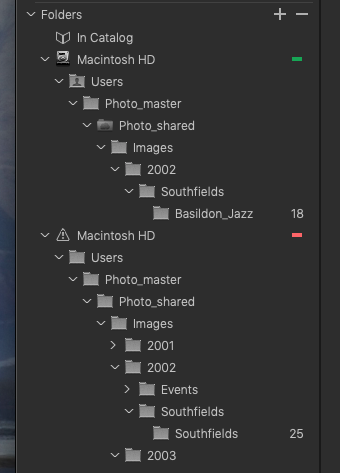
Like many people I have put off moving from Aperture, but finally decided to try migrating to Capture One. Unfortunately I am having problems with the migration. All my photos are referenced and have been for years so it seemed like it should be simple. But, when I import an Aperture library all my Library folders are all shown as being on a drive that is offline. My main hard drive "Macintosh HD" is shown with a red tag against it. But if I select any file and pick "show in finder" it shows me exactly where the file is.
If I try to synchronise a folder, Capture 1 creates a second hierarchy underneath "In Catalog" with a green tag. See picture below.
I thought that a work around might be to drag a folder from the "red hierarchy" to the "green" one but then I get a message saying that files already exist and asking me if I want to merge them. Answering yes deletes all the files on disk! Backup is a wonderful thing.
I have read Walter Rowe's article and his instructions do not work for me either. If I import a "temporary" catalog into a "master" catalog there are no folders shown under "In Catalog" and "Show in Finder" and "locate" are both greyed out. The files are now "inside" the Capture One catalog.
One of my main reasons for picking Capture One was that there appeared to be a migration path. I don't mind a few "workarounds" to get it to work but I can't find one that does.
Any advice would be very welcome.
-

Hi FL
This is an indirect answer to your question. Hopefully you'll be able to get it resolved using manual steps but if not this tool may be of help.
Avalanche, a tool designed to help you transfer your managed photos from one application to another without losing any data, while preserving all your edits.
I am not affiliated with Avalanche in any way.
Good luck!
0 -

Jo
I was at the other end of the migration timeline and decded to quit Aperture not long after Apple announcd they were withdrawing support. I downloaded free trial versions of everything that seemed to cover all that Aperture did, namely library + editor. CaptureOne was the hands down winner and I've been with them since V8 (apart from a 6-month firtation with LIghtroom+Photoshop about a year ago, that I ended up deeply regretting).
The key success factor for me was not to import the whole catalog at once but to break it done into manageable chunks. It's been so long since I used it I can't remember the names but I think there is a Project category or something similar in Aperture where you can file photos that share some pre-defined characteristic, for example "Football" or "Family portraits". Export these to a folder then import to CaptureOne one at a time as individual libraries which you can then merge.
The basic steps are to get your original jpeg or raw files exporrted out of Aperture and in to folders on your hard drive. You can then create one or more referenced libraries in CaptureOne as described in Part 8 of the User Guide (https://support.captureone.com/hc/en-us/articles/360016309678-Capture-One-21-User-Guide).
0 -
Thanks for taking the time to reply Bill. I'm glad to hear you are still happy with Capture One. I might have had less trouble if I had not put off moving for so long.
Unfortunately if it was as simple as following all the instructions on the website and in the user manual then I would not be posting here. If all I wanted to do was import the basic jpegs or raws then it would be simple if tedious but I want my edits/comments/tags etc. so I have to import a library.
The basic problem is that after import Capture One "thinks" my files are on a missing removable drive and they aren't. It doesn't matter if I import the whole library or a very small sub-section the result is the same.
Thanks for trying though!
0 -
Let me see if I can find the legacy files from my migration (if I still have the TM or CCC backup from that time) and check on the steps. I certainly do not recall having the problem that you describe.
I take it you are on CaptureOne 21, but what version of MacOS?
Lastly - and just in case ... have you read this: https://help.apple.com/aperture/mac/3.6/#/apr55603361 It has instructions for Mojave and Catalina - which opens the question of there being a possible Big Sur issue (I've just had that big time trying to get Adobe Color Print Utility to work and had to end up going back to an old MacBool that had High Sierra on it).
I
0 -
I expect you will have seen this, but just in case ... https://learn.captureone.com/blog-posts/migrating-apple-aperture-libraries-to-capture-one-pro/
0 -

This is strange and unexpected behaviour; I didn't see that when I migrated from aperture quite a few versions ago.
I reccomend that you make a new Aperture library (copied from your existing Aperture Library) that just references one OSX folder, and try migrating that. If that works as expected, make a new catalog and a new library with more folders, and see if that works correctly.
You may either find that you can break up your Aperture into a few resonably large chunks and migrate each one; if not, if the problem occurrs with even a small Library, its time to oppen a ticket with Capture One technical support.
0 -
Good advice Eric
0 -
You are all being very kind with your comments, but sadly have not suggested anything I hadn't tried before I posted originally. I have even tried with a very small aperture project with just 2 photos and the effect was the same. I have concluded that the next step is to reinstall my Mac. This is not something I want to do as it will take some time. I will let you know if that works.
0 -
****Editted***
Since it also happens in the very simple case, the root cause is likely NOT something a user can fix. I would not reinstall the Mac at this stage. I think you need to open a ticket with CaptureOne tech support, and let them help you.
0 -
I opened a ticket with them 3 days before I posted here. I haven’t had any response 🙁
0 -
I finally got a response from Capture One support. This said
"Indeed, this is a known rare issue with some Aperture libraries.
This was not prioritised in the past as the fix is relatively easy – you should run Locate on your offline/red "Macintosh HD" in Capture One"I had not thought of running Locate on a whole drive, and I'm happy to say it worked. Now I can trial the rest!
0 -
Glad it got resolved Jo.
0 -

I had a difficult time migrating my Aperture catalogue, in the end I decided to let Apple Photos do its thing and then export from that back into C1, that way I could also archive some images. It was far from ideal and a painfully slow process. But in the end it worked out.
0 -
I would not have been prepared to do that and lose all the history of my edits.
0 -
Jo - I'm glad to hear that running the "Locate" process worked for you. Unfortunately, while it appears to have worked for me (it now displays the proper location of the original Aperture file), most of my photos are still "missing". This is very frustrating because when I originally purchased C1 Pro, imports worked perfectly.
0 -
Well, this is interesting. I take back what I just said. After running "Locate" everything remained the same. None of the originals were found. I closed the program and wrote my message (above) here. For whatever reason I decided to reopen the program to check something else and guess what? Now all of the images are available. So, it appears as though after running "Locate" you need to shut down and restart the program, or at least close the catalog and reopen it. Weird.
0
Post is closed for comments.
Comments
16 comments