NEF files: wrong colors / dull contrasts in comparison to Capture NX-D, in-camera and real life

Hello,
I am looking for the right software to use to develop RAW images from my Nikon Z5.
Capture One's user interface looks appealing and I can appreaciate the monthly subscription model. I am using the 30 day test version. However, when I open my NEF files, I see several issues:
-> Saturation is way too high by default
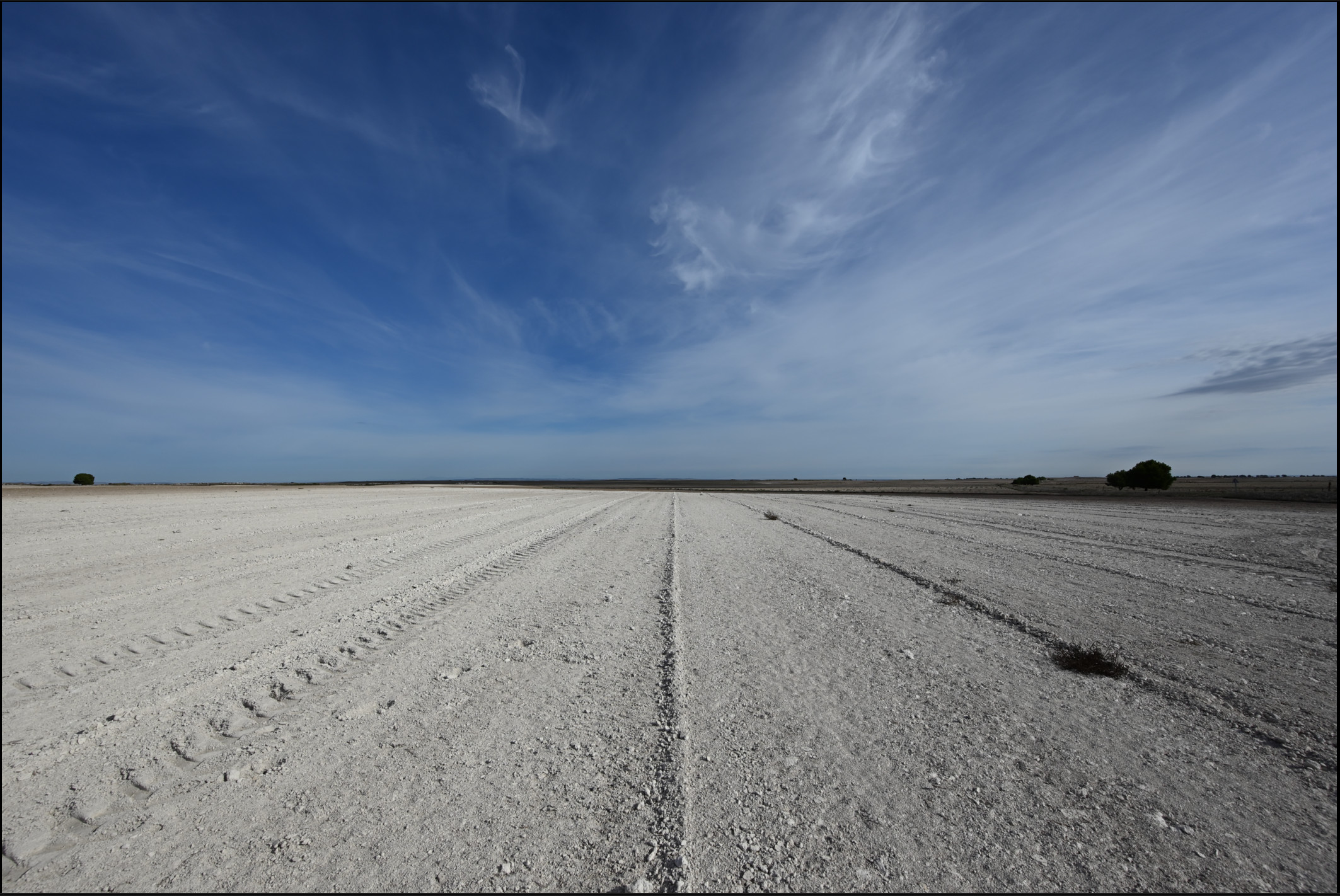
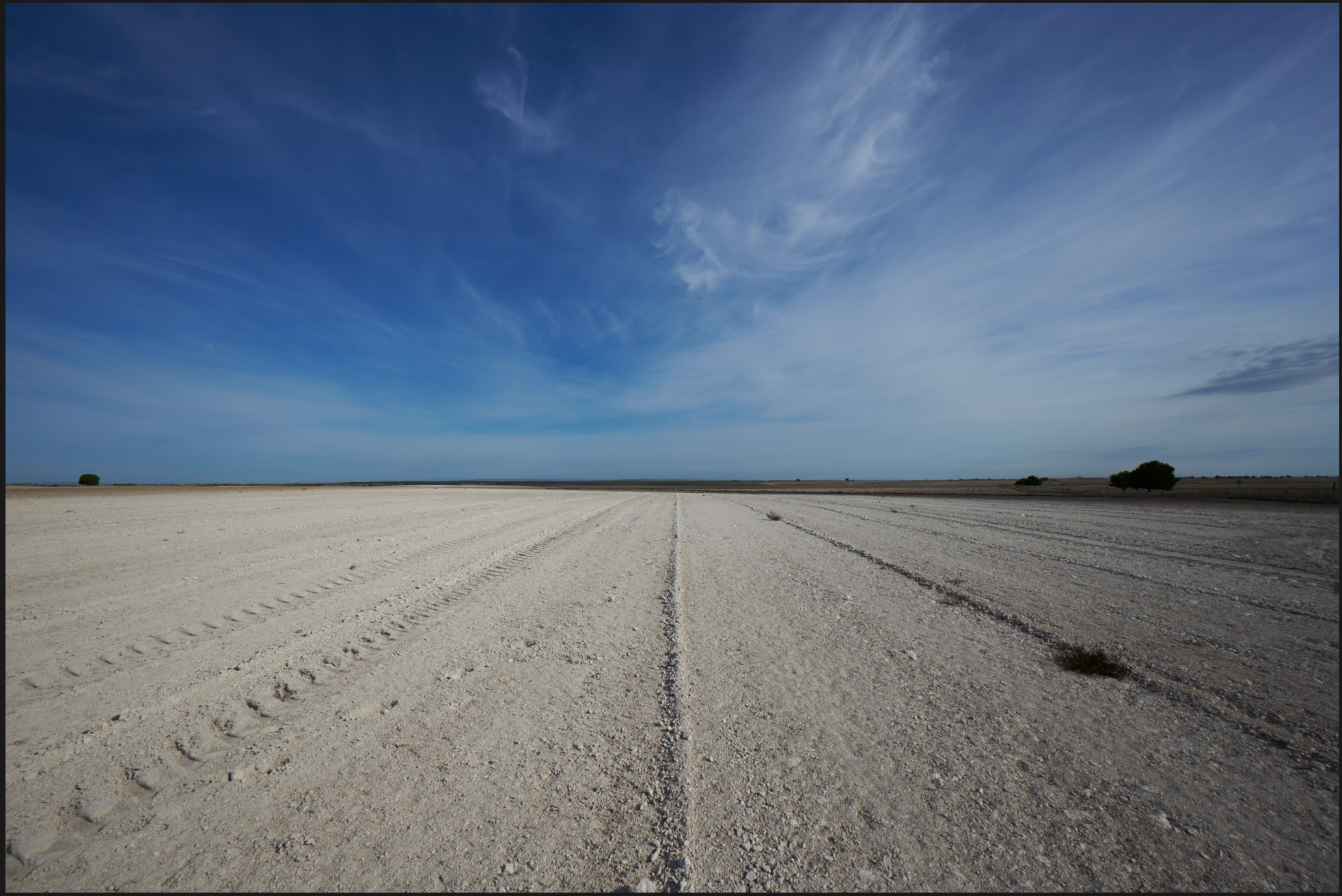
-> Parts of images, like a plowed field under a blue sky, have the wrong color tone. Ochre instead of white-ish grey.
-> Somehow contrast and luminosity is lacking
Opening my images in Capture NX-D, which is a RAW editing software by Nikon, I see those images very close to what I see in the camera viewer. Do I miss a camera color profile or something? I tried different settings like "Nikon Z5 Landscape" etc, but that doesn't change ie. the wrong color tones.
Thanks in advance for your clarifications.
-
Capture NX-D:
Capture One:
I assume this is a total beginner's question, so please bear with me.
0 -

FIrstly it may be worth mentioning that the Trial software is exactly the same as the full software and all of its mostly manufacturer-related versions with the availability of content per version controlled by the Activation Key.
Secondly what you see in the NX-D software should match what you see in the camera's screen subject to whatever limitations and differences there might be between the camera's screen and your screen. Basically this is because what you are seeing is likely to be the jpg file embedded in the raw NEF file as a preview created by the camera.
Capture One will have processed the RAW data and created its own Preview file which may look a little different for a number of reasons including choices made by some of the settings and, possibly, the pixel count for the Preview file by comparison with the embedded jpg from the camera.
There is not necessarily a "correct" colour rendition but of course one might prefer one to another without either being "correct" or, indeed, providing any of the colours that we thought we might have seen at the time.
There are a number of other possible factors that can result in C1's rendition seeming quite different to the Nikon version but I think that would be heading into much too detailed discussions at this point.
You might try a slight White Balance adjustment to see if that provides you with a result that is closer to your liking. However, that is unlikely to be the only area of interpretation that may be "seen" differently by those who establish the base-line RAW file settings that make the data into visible images somewhat attuned to the preferences of the world's population - which tends to have differences of opinion about what looks "right" by default.
1 -
EDIT: I think I understand what you are saying. But then unfortunately C1's "interpretation" of the file is somewhat more unfitting for me then all the other software's renderings. I would be happy if the software does as little interpretation as possible, since that is my job as a photographer, and instead provide me with a view that is as close as possible to what I see through my camera's viewfinder.
Lightroom seems to do this a bit better, in my own subjective view (I just installed LR today).
Is there a way to change those parameters that make the image look slightly wrong to me, so they are applied upon opening a new file?
0 -
Permanently deleted user
since that is my job as a photographer
And yet you're happy to accept Capture NX-D's interpretation as "right"? It's interpreting the bejeezuz out of the Raw file data.
Surely, to follow the "my job as a photographer" logic to its conclusion, the decisions of a Nikon engineer as to how an image is supposed to look, should be entirely irrelevant to you, too.
The Nikon software displays the image INCLUDING in-camera settings (in the same way that DPP does for Canon cameras), but - for the most part - 3rd party converters like Capture One do not recognise in-camera settings, presenting instead a truer-to-the-Raw-data rendering, which you're then at liberty to tweak to your heart's content.
Once you have a formula you like - save it as an import preset, and job done.
Lightroom does include approximations of Nikon's "Picture Controls", so will sometimes provide a more camera-like starting point: but it's trivially easy to make Capture One do effectively the same thing, and - be clear about this - there's quite a lot about Lightroom's rendering of Raw files which is demonstrably WORSE than what Capture One can do.
-1 -
OP:
All RAW files have to be interpreted.
Camera manufacturers offer the ability to choose from various "interpretations" in camera, originally with a view to making digital images more "film-like".
If you look at the Base Characteristics tool in Capture One you will find a number of settings for the Profile that are provided as shortcuts to typical enhancements of one sort or another that photographer may like to use as a starting point for their own interpretations.
For some camera manufacturers that might include "Film Styles". Fuji and Sony in particular fall into that category. More recently Nikon with some of their more recent cameras have followed suit as I understand things.
I'm a Canon user so no such complexity for me - my choices are limited. The more so because I tend to start all images on a "Linear Response" curve and that basically means that C1 is doing no more than making the RAW file visible in a reasonable way for me to see what I am working with.
Highly recommended if you want to take full charge of the result from the start.
0 -

As mentioned above applying a Style or using Auto Adjustment on import is worth looking at.
There are built in C1 styles, or you could tweak an image to your liking, save those adjustments
as styles then apply the them automatically on all new imports.Try the Auto Adjustment button on the top C1 tool bar.
Does that get you closer to Capture NX-D version?
If so Auto Adjustment can also be applied automatically on import.https://support.captureone.com/hc/en-us/articles/360002609238-Auto-adjustments
https://support.captureone.com/hc/en-us/articles/360002521938-Importing-images-into-a-Session#h_01EC5BZC2GS30JNVJWNQ35HP8P0 -
When I had newly got a Nikon Z6ii, as an experiment I tried putting the same raw file into as many apps as I could lay my hands on at the time, including
- NX-D
- Capture One
- Lightroom
- Affinity Photo
I found that NX-D and Capture One were very similar (and more to my liking) while LR and AP were rather different. So there may be an element of it rather depending on the shot, how well the camera has set the auto-WB, and other factors.
Ian
0 -
So how would I remove the candy colors from the sky and the brownish color tone from the field? Saturation, color tone, temperature I tried without much success.
0 -
According to the metadata both your images have been processed in GIMP
and have a GIMP built-in sRGB profile.
What's going on there?0 -
That's a good question. I think I exported those JPGs from C1/Nikon NX-D and then used Gimp to resize them to 50% or 30% to make them viable for upload.
0 -
You might consider using something like the X-Rite ColorChecker Passport 2 to calibrate C1 to your camera with an ICC profile that can be applied to your images on import to C1.
https://www.youtube.com/watch?v=gMGpBDnhCyM
One ICC profile created under midday type lighting conditions
might work also for most of your shots ( maybe :) )Do you have a link to the RAW file for your above image?.
0 -
Here's the link:
https://cloud.hans-apps.de/index.php/s/7CeywtSSA7Sw8Bj
I will also check if I can somehow fiddle around with the auto adjustment settings that were applied on import (I assume) as suggested by you earlier.
0 -
It's difficult to be sure since my screen, etc., may be running very different settings to yours but I think the settings you might prefer would be along the lines of
Base Characteristics Tool
ICC Profile : Nikon Z5 Nikon - Standard
Curve: Linear Response
White Balance Tool.
Mode: Shot (If it shows "Custom" it means it has been reassessed)
Then, having set some base lines, try the "Auto" adjustments for the following tools.
Exposure
High Dynamic Range
Levels
See if that gets you somewhere closer to how you wish the image to look.
I am going to suggest that you ignore Auto White Balance since, with this image, a very small re-assessment of WB may appear to induce the colouration of the sky and ground. Something that you wish to avoid.
0 -
Looking at your RAW file most of the blue sky problem seems to be the result of using the Generic, Vivid or Landscape base characteristics ICC profiles.
Neutral, Portrait or Standard give a much better result.
Also you RAW is a bit under exposed with a restricted tonal range which has been carried over into your C1 jpeg and to a lesser degree in the Capture NX-D version above, making the jpegs look pretty flat.
Try these settings after resetting all adjustments:
Base Characteristics ICC profiles: Neutral
Curve: Auto
White Balance Mode: Shot
Go to the Levels tool and click the auto adjust icon.
Play with the Levels mid-tone control if you think the result is too bright.
Increasing Sharpening from default 180 to around 280 helps too.0 -
Thanks a lot for figuring out these settings. I will test them out this evening and return with the results.
0 -
Okay, I tried both your adjustments, but somehow didn't get satisfying results; the sky color seems to be manageable, but I don't quite get that color tone out of the field. With some auto adjustment settings the field was somewhat "whiter", but with the darker field in the back becoming too bright. I have tried a variety of apps and only in C1 this ochre color tone seems to be present in a noticeable way. Not sure what that means exactly. Maybe I would have to adjust my camera settings to play nicer with C1 or something, but I was under the impression that shooting RAW means that your camera settings do not matter as much as, let's say, processing directly to JPG.
Which is too bad because in terms of UI and tools, C1 seems to be the only alternative to Lightroom that I was able to find.
0 -
I would not say that I see an ochre tone, though the overall hue of the image is a little warmer. That shows most obviously in the foreground. However, it is not extreme on my screen and the settings I suggested previously eliminate it so far as I can see, making the colour very much the same as your example jpg images. Perhaps not identical since they seem a little dark and I settled for a brighter result.
I always discount the camera viewer for colour comparison "reality". However different screens can have quite different characteristics and one can end up chasing questions like system colour calibration needs, the capabilities of screen types, screen brightness and so on, all of which can have significant effects on the on-screen appearance of an image and subsequently the way it appears when processed to a jpg or if printed.
Ultimately you should work with whatever application gives you the results that you want in the time that you are prepared to commit to obtaining them.
0 -
Try my settings above from scratch again but finish
with lowering the white balance to around 4650K.
Base Characteristics ICC profiles: Neutral
Curve: Auto
White Balance Mode: Shot
Go to the Levels tool and click the auto adjust icon.
Play with the Levels mid-tone control if you think the result is too bright.
Increasing Sharpening from default 180 to around 280 helps too.
White Balance Kelvin: 4650K0 -
To be fair to C1, the image in NX-D doesn't really have the same colors that I see in the camera viewer neither.
Applying @gb's corrections now gives me a result that is a good starting point, I think.
Would it then make sense to apply these settings on every image upon import?
>Ultimately you should work with whatever application gives you the results that you want in the time that you are prepared to commit to obtaining them.
I agree, but after trying out half a dozen or so I kind of prefer a tidy user interface (LR wins here) and tools that are intuitive. Only LR and C1 work for me in that regard thus far.0 -
Try experimenting with a range of images with
different lighting, subject matter etc before making a decision on a starting point.
I think you will learn C1 faster if you stay away from the auto adjust buttons
and start dragging the sliders manually.0 -
I found that there is an ICC profile "No color correction". It seems to have the truest color tones (for me and my screen). If I then add some saturation, the result seems to be decent. All the Nikon profiles display strange colors.
0 -
How do non-Nikon camera Raws look on your screen?
Is your screen color calibrated?0 -
Interesting, I did not know there is the ICC profile "Effects>No color correction". I also downloaded your file and played with it a few days ago. But I find that _no color correction_ is very far off what I see with NXD for your particular image, both the blue and the sand.
0 -
>How do non-Nikon camera Raws look on your screen?
I imported some BMPCC DNGs and the colors are rather weird and exposure is way too bright. There are some Open Source Linux tools that do a decent job with the DNG files from my BMPCC out of the box. I assume C1 always needs a bit more attention.
>Is your screen color calibrated?
Not hardware-calibrated, no. Just using Win 10's onboard solution. Would you suggest getting a calibration tool? Does this even make sense for consumer-grade monitors (Iiyama Prolite 27")?>But I find that _no color correction_ is very far off what I see with NXD for your particular image, both the blue and the sand
Once I realized that NX-D doesn't really show (color wise) what I see in the camera viewer any better, I didn't use it anymore as a reference.0 -
Making your own ICC profile for the Z5 with the X-Rite ColorChecker Passport 2 might give better and cheaper results than calibrating your monitor at this stage.
I should of mentioned this before but check what working proof file C1 is using.
I think it defaults to Selected Recipe which means it will change depending on which recipe you have highlighted in the Export Recipes Tool.
I set it to No Working Profile via:
View - Proof File - No Proof File (second from bottom on list, have to scroll).
Contrary to the name I think this must use C1's own internal working ICC profile.
This seems to be the only working profile that allows color channel independence when using the Levels and Curves tool.0


Post is closed for comments.
Comments
25 comments