Where did my images go?

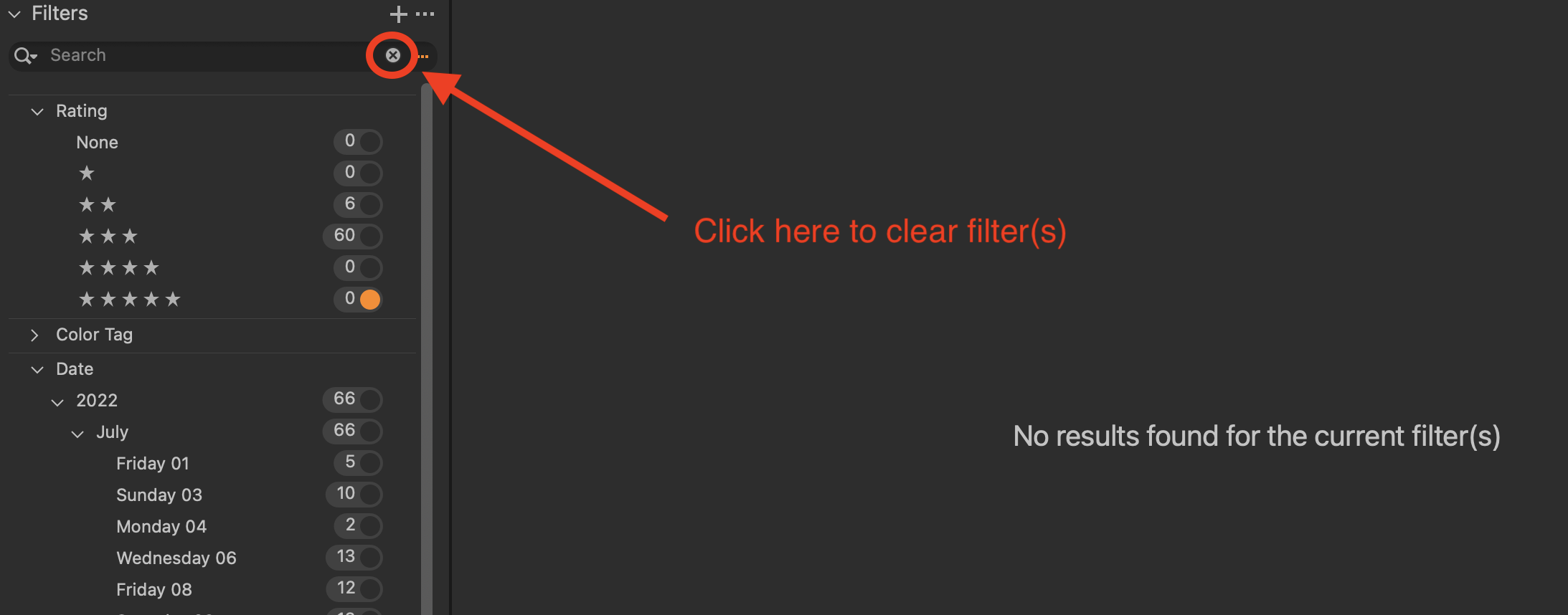
I am currently editing my earlier catalogs and deleting some of my less than ideal images. I just encountered a problem with one of the folders in my 2016 catalog in which C1 shows that I have 21 images in it. But when I click on the folder, C1 shows no images; all I see is two messages that say “No images selected” and “No results found for the current filter(s)”. I am not experiencing the problem with any of the other folders in my 2016 catalog.
Meanwhile when I go to my Mac pictures folder I can see all 21 images consisting of 15 each .CR2 and 6 each .tif. I am not sure when this problem occurred, but everything was ok prior to installing v15.3.
If I double click on a .CR2 image in the Pictures folder it opens in Affinity but does not appear in C1.
How do I get C1 and my Pictures folder to cooperate with each other?
-
The fact that it says "No results found for the current filter(s)" suggests that a filter is active. In the Filters tool, try clicking the x where I have indicated on this screenshot. (It is showing No results found for the current filter(s) in this case because there is a filter to show 5* images, but the folder doesn't contain any.)
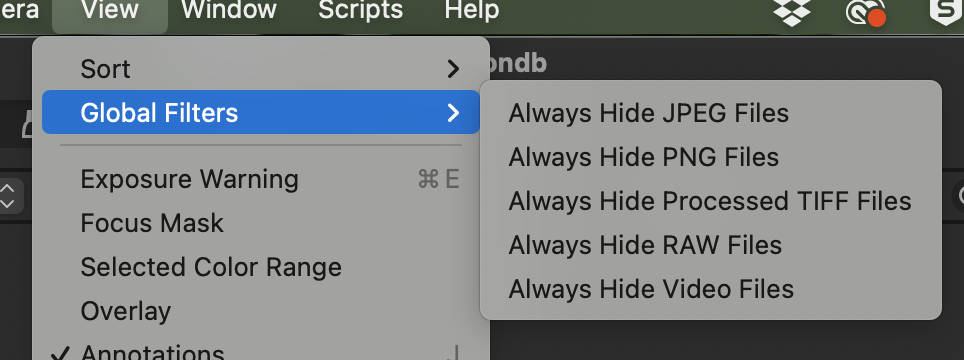
You could also check that no global filter is operative - see the View menu, like this.
And if it says No Images Selected, you are in the Viewer, but there is no image selected in the browser.
Ian
0 -
Ian, Thank you. It worked!!
I have another question. I now have about 10,000 images on my computer across 8 catalogs and I am losing the ability to keep track of where each image is located. So I am trying to set up a shared keyword library that works across all of my catalogs. I know how to created a keyword library that is catalog specific, but I really want it to work across all of my catalogs.
Any suggestions
0 -
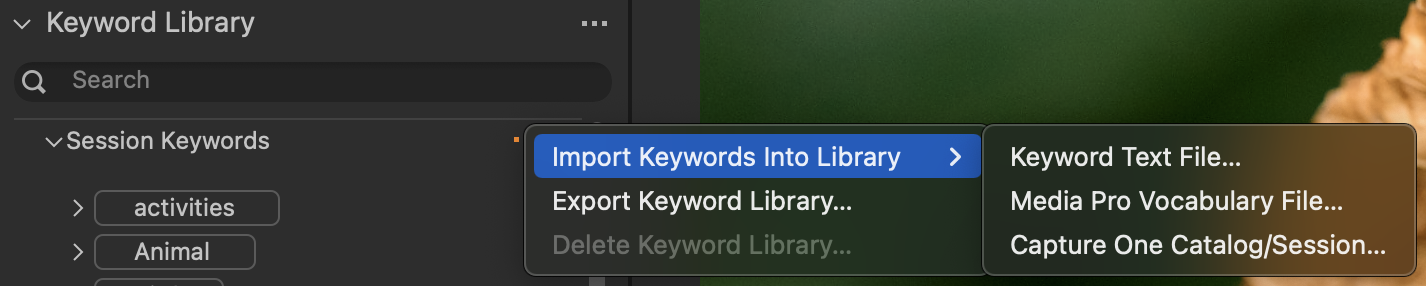
Yes. In the Keyword Library tool, click the ... and then choose one of the options shown.
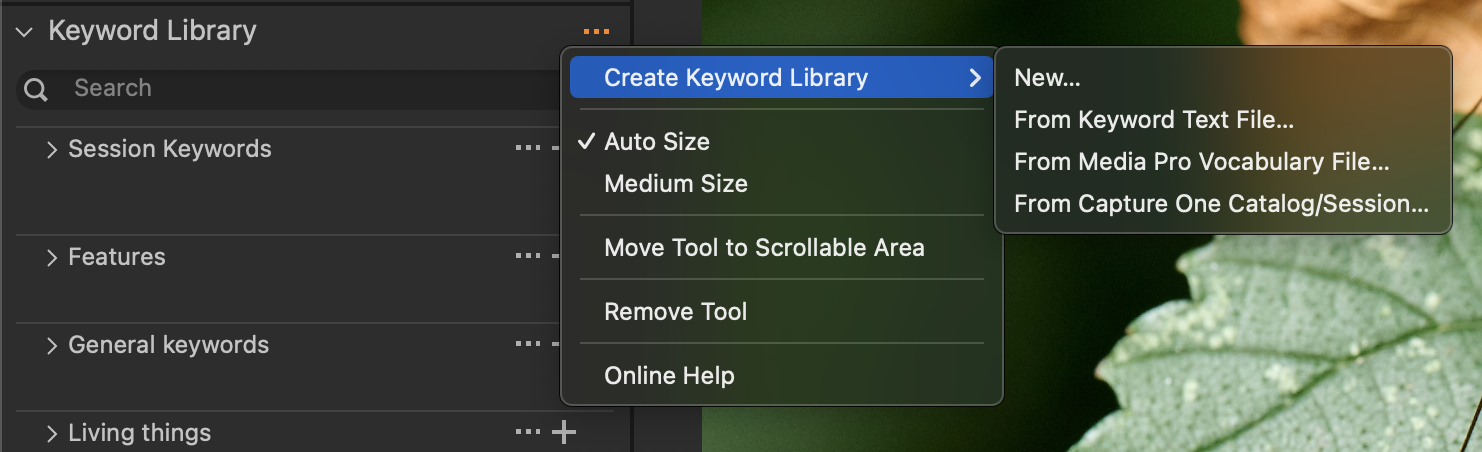
Keyword Libraries are indeed available across all your catalogs (and sessions) but unfortunately there is no way of searching for images by keyword in more than one session at once. (For instance you might have pictures of John Smith in more than one catalog, but you'd have to search in each one to find them all.)
10,000 images is not very many - you might consider combining them all into one master catalog to facilitate finding things.
Ian
0 -
I was afraid that this was going to be your answer.
My catalog structure is a carry over from Lightroom. Is there an easy way to merge my 8 catalogs into one monster catalog?
0 -

This should be pretty straightforward: just pick one of your catalogs to be the new master and import the other catalogs into it using either the Import button in the toolbar or File...Import Catalog. Alternatively, create a new catalog and import all of the others into it.
You might want to do that before updating your keywords, and then do it once in the resulting catalog.
0 -
-
I obviously did something wrong.
- I backed up all of my existing catalogs. In each of my current catalogs I have my images in multiple folders that are named by year, month, day, e.g. (04-06-03).
- I created a new catalog named “Unified Catalog” that became the import destination.
- When I imported catalog into Unified Catalog all of the images were imported but without the folder structure, just a bunch of pictures, but no year, month day folders.
- The good news is that my original catalogs still exist, so my mess is recoverable.
0 -
-
Did you see this guidance in the online Help?
https://support.captureone.com/hc/en-us/articles/360002518258-Importing-a-Capture-One-Catalog
Ian
0 -
Ian,
I surrender! Nothing seems to be working.
Last question, How do I copy and paste a Key Words Library from Catalog A into Catalog B? I have spent the last half hour searching Google and while I can find all kinds of words for Adobe et al, I have been unable to find any guidance for Capture One.
0 -
If you create a Shared Keyword Library when you are in Catalog A it should be there just as much in Catalog B. (As opposed to just the Catalog Keywords.) I'm in a session any the moment - catalog is on the other computer. But here is what I see in the Keyword Library tool.
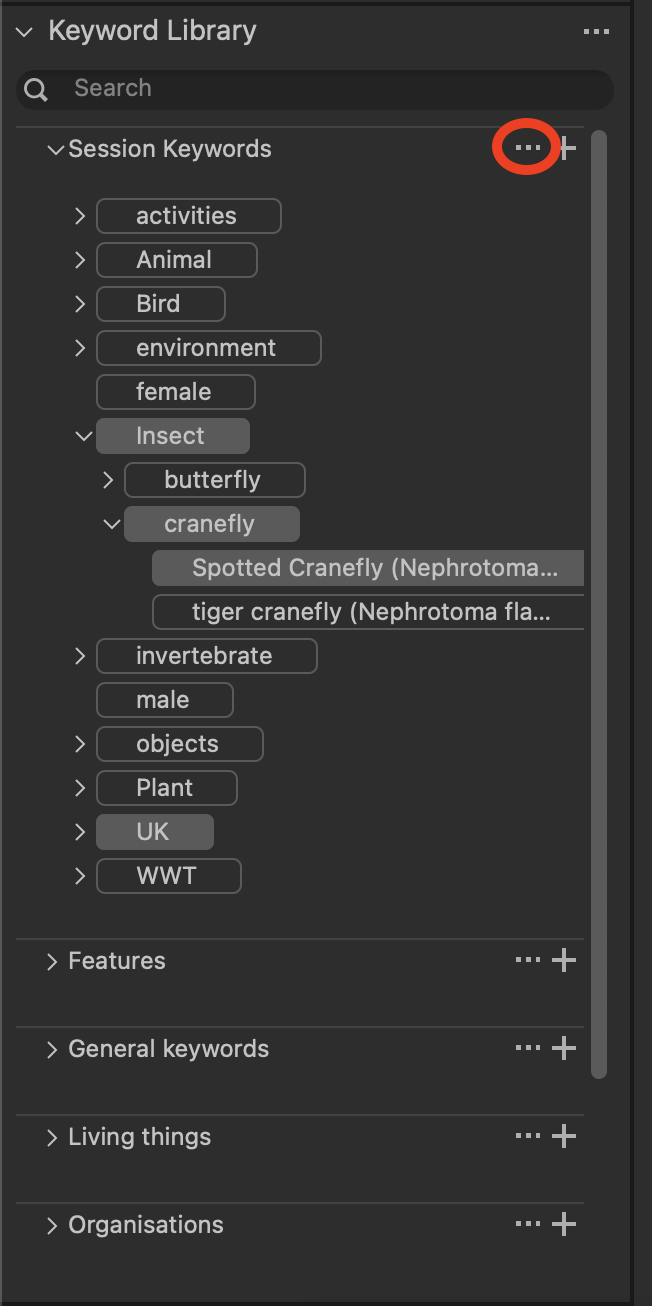
The Session Keywords are those that have been added to images in this session. The others (Living Things for example) are shared keyword libraries I have created and they are always available to every session or catalog I create on this computer. The currently selected image is of Spotted Cranefly and I added that keyword to it from the Living Things library. It appears also in the Session Keywords, because there is an image with that keyword in this session. There is a third species of cranefly (Tipula maxima) in the Living Things library, but it doesn't show in the Session Keywords Library because no images of that species are in this session.
You can click the ... next to the Session Keywords title (highlighted in the screenshot) and choose Export Keyword Library... from the menu. It exports it as a text file. Put it somewhere convenient, then you can import it in a different session or catalog. Click the same ... and one of the menu options says Import Keywords Into Library ... and there are various options including Keyword Text File. Select the file you saved. (You could equally well import a file of keywords obtained from elsewhere - for instance there are sites where you can obtain ready-made keyword lists.)
The online Help articles are here.
https://support.captureone.com/hc/en-us/articles/360002544178-Keywords-overview
There is also a really old tutorial here https://youtu.be/SKZsbwIWHo4 It refers to Capture One 9 (!) but I think that the principles are still the same, though it's a long time since I watched it. (Shame, really - it's an area that needs some updating.)
Hope that helps!
Ian
0 -
My wife said I am like a dog with a bone, but I am making incremental progress; I now have my keyword library in each of my existing (year based) catalogs.
My next objective is to create a "monster" catalog that contains all of my images with the images still in their existing (year, month day) sub-folders. At this point, I am able to import the images into the "monster" catalog, but they come in without the (year, month, day) sub-folders
0

投稿コメントは受け付けていません。
コメント
10件のコメント