
If Capture One Live isn’t working as expected, this guide helps you troubleshoot problems like connection timeouts, missing updates, inaccessible shared collections, and sessions that won’t reconnect. You’ll find clear steps for resolving syncing issues and fixing incorrect sharing states. Use this article to quickly identify what’s causing the problem and get your Capture One Live session working reliably again.
Table of Contents
- Case 1: Changes are not syncing between Capture One Pro and the web page
- Case 2: Capture One is closed while online collections are still active
- Case 3: Unable to stop sharing a collection
- Case 4: Session or catalog was moved or opened from a cloud-synced location
- Known Bugs
Case 1: Changes are not syncing between Capture One Pro and the web page
- Check your internet connection. If you lose your connection for more than 30 seconds, you'll see an alert symbol on the "share online" button.
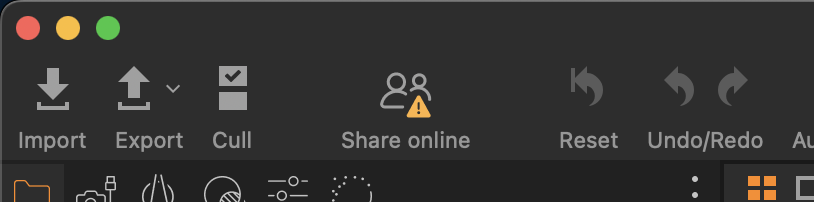
- Make sure your online collection is still active in Capture One. Look for the "Stop Sharing" button in the "Share online" menu to confirm it's still being shared.
- If your collection didn't reconnect automatically, look for the "Reconnect" button in the "Share online" menu. This will sync any changes between Capture One Pro and the web page.
Case 2: Capture One is closed while online collections are still active
If you close Capture One while you have online collections or if your PC is turned off, the website displaying the shared collection will still be available. People who view the website can continue to see, comment, rate and color tag your photos according to the access rights they have been granted. To upload new images, make edits, or synchronize ratings and tags from your reviewers, just open Capture One Pro. Your online collection will automatically reconnect. You can keep adding and editing photos to your online collection and receive ratings and color tags from your reviewers until the Expiry date is reached or until you stop the Session by clicking the Stop Sharing button.
Case 3: Unable to stop sharing a collection
If you encounter an error message saying "We are not able to stop your Capture One Live Session. Please check your internet connection and try again" when attempting to stop sharing, it may indicate an issue with your internet connection. To resolve this, ensure that you are properly connected to the internet and try stopping the session again.
Case 4: Session or catalog was moved or opened from a cloud-synced location
When a Session collection or folder is shared, Capture One Live assigns it an internal ID based on the folder’s original path. If the folder is later moved, renamed, or opened from a cloud-sync service (such as Dropbox, OneDrive, or iCloud), this internal ID may no longer match. Capture One Live will then attempt to identify the folder by name instead. Although this may still function, it can introduce unexpected behavior, broken sync, or inconsistent sharing states. For the most reliable experience, avoid moving Sessions or Catalogs after sharing and do not host them directly on cloud-synced drives.
Important:
Capture One Live sharing is tied to the Capture One user account and computer where sharing was started. If a Live Session is moved to another computer or opened by a different Capture One user account, continued Live syncing is not supported.
Known Bugs
- When copying the entire Session folder, the Capture One Live session is connected to both document instances.
Comments
5 comments
Capture One Live seems to have lower image quality than Capture Pilot. How many pixels is the image quality of Capture One Live? Is there any way to do Capture One Live in high resolution?
Helen, it's been 19 since the last response I received from you on my tech support request #189282. Can you please respond to me?
I've updated the watermark and want to push it to my existing live collection. How do I do this?
Hola , me podeis informar de cuando estará disponible la nueva version que sea compatible con OM 1 Markii
If you are having trouble syncing or stopping sharing, ensure your internet connection is stable. Also, check that your collection is still active in Capture One Pro and reconnect if needed. If you are facing any display glitches, try using a white screen to reset the view and troubleshoot.
Please sign in to leave a comment.